How to Grant Collaborator Access
When our support team needs to take a closer look at an issue, we may ask for Collaborator access to your Shopify store.
Collaborator access lets us review the areas needed for troubleshooting without requiring you to share your Shopify login details. You can check the permissions before approving the request and remove our access whenever you no longer need assistance.
When Collaborator access may be needed
We may request access when we need to:
- Check an issue directly on your store
- Review your CountryBlock settings
- Verify Shopify settings that may affect the app
- Investigate theme or app-related conflicts
- Help configure CountryBlock features for you
We only request the permissions needed to assist with your case.
What you need to send us
Before we can send a collaborator request, please provide:
- Your Shopify store domain, such as
your-store.myshopify.com - Your 4-digit Shopify Collaborator code
Once we receive these details, our support team can send a collaborator request to your store.
Step 1: Find your Collaborator code
- Log in to your Shopify admin.
- Go to Settings > Users.
- Depending on your Shopify account setup:
- If your store is part of an organization, select Users.
- If your store is not part of an organization, select Users & permissions.
- Click Security.
- Find the Collaborators section.
- Copy the 4-digit Collaborator code.
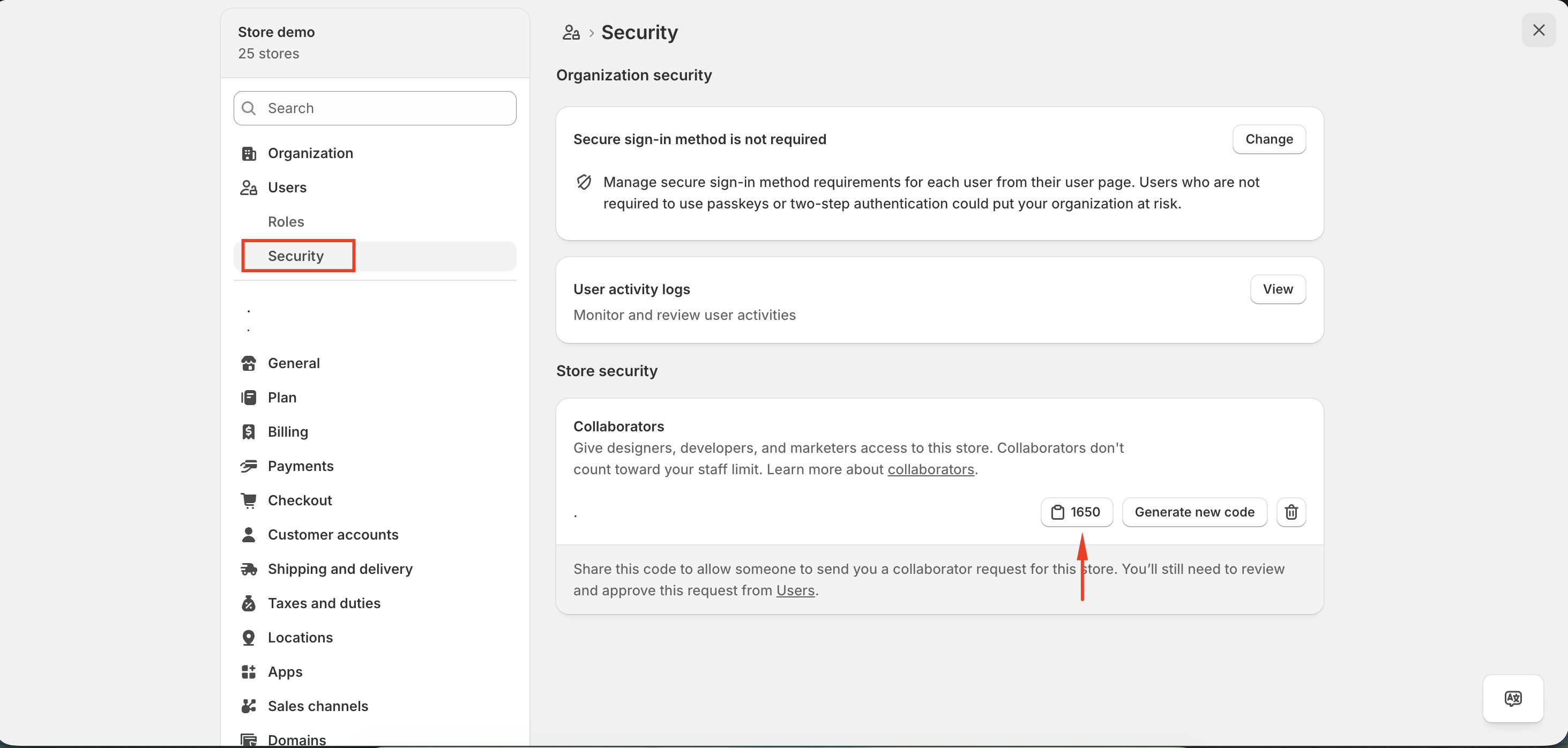
You can also follow Shopify's official guide for more details:
Step 2: Send your store information to us
Send your Shopify store domain and Collaborator code to our support team at [email protected].
After receiving the information, we will send a collaborator access request to your Shopify store.
Step 3: Review the collaborator request
Once our team sends the request, you can review it from your Shopify admin.
- Go to Settings > Users.
- Find the pending collaborator request.
- Open the request.
- Review the permissions requested by our support team.
Step 4: Approve the request
After reviewing the requested permissions, click Accept request to grant access.
Once approved, our support team will be able to access the permitted areas of your store and continue assisting with your issue or setup.
Good to know
- You never need to share your Shopify password with our support team.
- Collaborator access is only granted after you approve the request.
- You can review the requested permissions before accepting.
- Collaborator accounts do not count toward your Shopify staff account limit.
- You can remove collaborator access from your Shopify admin whenever needed.
If you have trouble finding your Collaborator code or approving the request, contact us at [email protected], and our support team will be happy to assist you.